
Path of Building Error Fixes: Common Problems and Solutions
How to Fix Path of Building Lua Errors and Loading Issues
Path of Building may sometimes display Lua errors, fail to open a build, freeze during startup, or show missing data. These problems can result from outdated files, damaged installations, incompatible build codes, or incorrect program settings. Most loading issues can be fixed without deleting saved builds. The correct solution depends on when the error appears and which part of the program is affected.
What This Guide Covers and How to Use It
This guide explains how to identify and fix common Path of Building Lua errors, startup failures, import problems, and loading issues. It also covers basic checks for updates, damaged files, build compatibility, and saved data. Start by noting the exact error message and the action that caused it. Apply the simplest fixes first, such as restarting the program, updating the Community Edition, or reopening the build.
Before reinstalling or removing files, create a backup of important builds. This protects character plans and allows you to restore them if troubleshooting changes the application data.
Common Causes of Lua Errors and Loading Failures
Lua errors and loading failures usually appear when Path of Building cannot read a required file, process imported build data, or access its installation folders correctly.
Finding the cause first makes troubleshooting easier and helps avoid unnecessary reinstallation.
Outdated Path of Building or Community Fork
An outdated version may not support newer skills, items, passive trees, or build codes. This can lead to Lua errors when opening builds created with a more recent release.
Updating Path of Building Community Edition often restores compatibility and replaces outdated program data.
Corrupted Installation or Missing Files
Program files can become damaged after an interrupted update, failed extraction, or manual folder change. Missing modules may prevent the application from starting or loading calculations.
A clean reinstall is usually the best solution. Back up saved builds first, remove the damaged installation, and install a fresh copy from the official source.
Incompatible Build Data and Import Issues
A build code may be incomplete, outdated, or created for a different version of Path of Building. Unsupported links and damaged copied text can also cause import failures.
Copy the complete code again and confirm that it belongs to the correct game and edition. Testing another build can help determine whether the problem is with the file or the application.
Permission, Antivirus, and System Conflicts
Path of Building may fail to save or load files when it does not have permission to access its folder. Antivirus software can also block or quarantine important program files.
Run the application from a normal writable folder and check the antivirus history for blocked files. On Windows, launching the program as an administrator may help identify a permission-related problem.
Pre-Troubleshooting Checklist
Before changing files or reinstalling Path of Building, complete a few basic checks. This protects saved builds and provides useful information for identifying the cause of the error.
Back Up PoB Data and Build Codes
Save copies of important build codes before troubleshooting. Open each build, copy its export code, and store it in a text file or another safe location.
You should also copy the folder containing saved PoB builds. This allows you to restore your data if an update, clean installation, or file removal causes a problem.
Confirm PoB Version and Error Details
Check the installed Path of Building version and confirm whether you are using the Community Edition. Older versions may not support newer build files, items, or passive tree data.
Record the complete Lua error message, including the file name and line number. Also note whether the issue appears during startup, build import, calculation, or when opening a saved file. These details make it easier to select the correct fix.
Step-by-Step Fixes for Path of Building Errors
Start with simple checks before removing files or changing system settings. Apply one fix at a time and reopen Path of Building after each step to see whether the error has been resolved.
Keep a backup of important build codes before updating, reinstalling, or resetting application data.
Update PoB and Community Fork Versions
Older versions may contain outdated files or calculations that newer builds cannot process. Open the update option inside Path of Building Community Edition and install the latest stable release.
If the built-in updater fails, download a fresh version from the official Community Edition source. Restart the application after the update and test the same action again.
Verify Build Codes and Import Data
Incomplete or incompatible build codes can trigger import errors and Lua messages. Copy the code again and make sure no characters, spaces, or sections are missing.
Test the code using these checks:
- Confirm that it was created for the correct Path of Exile version.
- Try importing another known working build.
- Ask the build creator for a fresh code if the original still fails.
If other builds load correctly, the problem is likely related to the imported data rather than the application.
Perform a Clean Reinstall
A clean reinstall replaces corrupted or missing program files. First, back up saved builds and close Path of Building completely.
Remove the existing installation folder, then download and install a fresh copy. Avoid placing the program inside a restricted system folder, as this may cause permission problems.
Open the application without importing old settings first. If it works normally, restore saved builds gradually to identify any damaged files.
Restore Default Settings and Data Files
Custom settings or modified data files may cause repeated errors. Resetting them allows Path of Building to create clean default files during the next launch.
Rename the configuration or data folder instead of deleting it immediately. Start the program again and check whether the issue is fixed.
If the error disappears, one of the old settings or data files was likely damaged. Important builds can then be carefully copied back.
Find and Interpret Lua Errors and PoB Logs
Path of Building usually displays Lua errors inside an error window. This report can identify the affected module, line number, and action that caused the failure.
Copy the full message or take a screenshot before closing it. This information is useful when searching for a fix or reporting the problem.
Where PoB Stores Logs and Error Reports
Startup and graphical problems may create a file named SimpleGraphic.log near the Path of Building executable. Portable users should check the extracted program folder, while installed users can open the application’s installation directory.
Some errors appear only in the on-screen report and do not create a separate log. Save the complete message together with the PoB version and the action that triggered it.
Understanding Lua Error Messages and Problem Files
A Lua error typically includes a module name, a line number, an error description, and a stack trace. For example, Modules/Build.lua:790 points to line 790 in the Build module. Similar reports are used in official issue submissions to locate the failing function.
Messages such as attempt to index a nil value usually mean that PoB expected data that was missing or incompatible. The first module and line listed near the top often provide the most useful clue, while the traceback shows the sequence of functions involved.
Do not manually edit Lua files unless you understand the code. Updating PoB, testing another build, or performing a clean reinstall is usually safer.
Fixing Import and Loading Issues
Import errors often happen because the build code is incomplete, outdated, or created for a different Path of Building edition. Loading may also fail when the application cannot process certain items, gems, or passive tree data.
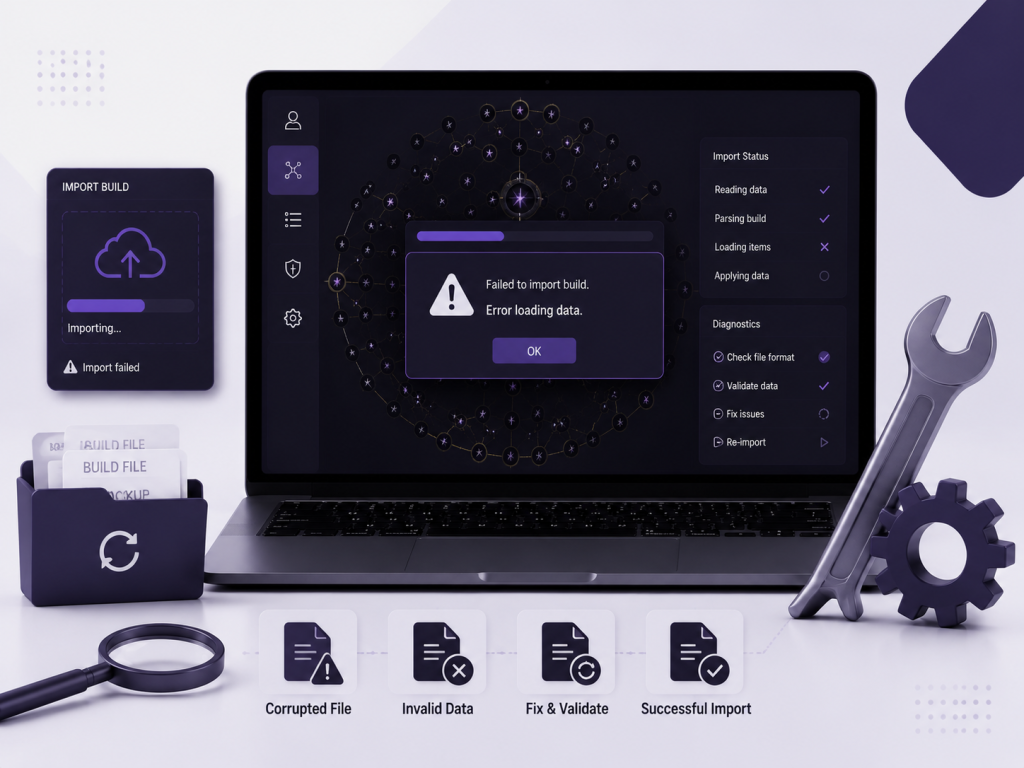
Test another working build first. This helps confirm whether the problem is caused by the imported data or the PoB installation.
Common Import Problems and Solutions
A build may fail to import when the copied code is missing characters or contains extra text. Copy the full code again and paste it directly into the correct import field. Other common fixes include updating PoB, checking that the build belongs to the correct Path of Exile version, and using a supported POBb.in or build-sharing link.
When only one build fails, request a new export from its creator. If every build fails, update or reinstall Path of Building.
Correct Ways to Export and Import Builds
To export a build, open the Import/Export Build tab and generate the build code or supported sharing link. Copy the complete output without changing its characters.
To import it, paste the code or link into the import field and select Import. Confirm that the passive tree, equipment, skills, and configuration settings have loaded correctly. Save the imported build under a new name before editing it. This keeps the original version available if later changes cause errors.
Common Error Messages and What They Mean
Path of Building error messages usually identify missing data, damaged files, or a problem inside a specific Lua module. The message may also include a file name, line number, and stack traceback.
Recording the complete message helps determine whether the issue is caused by the build file or the application.
| Error Type | Common Meaning | Recommended Fix |
|---|---|---|
| Nil value error | Expected build data is missing | Update PoB and test another build |
| Missing file error | A required program file is unavailable | Repair or reinstall PoB |
| Module loading error | A component is damaged or blocked | Check the antivirus and reinstall |
| Import data error | The build code is incomplete or incompatible | Copy or export the build again |
“Attempt to Index a Nil Value” Error Fixes
This error appears when PoB tries to access information that does not exist. It may be caused by an unsupported item, missing gem data, outdated build code, or an incompatible custom modifier.
Update the Path of Building and reopen the build. If the error remains, remove recently added items, skills, or custom modifiers. Testing the build in a clean installation can also help locate the damaged entry.
Missing Files and Dependency Errors
Missing file errors usually indicate an incomplete installation, interrupted update, or antivirus action. PoB may fail to start or load specific modules when an important file is unavailable.
Check the antivirus quarantine and restore trusted PoB files if needed. When several files are missing, back up saved builds and perform a clean reinstall from the official source.
Advanced Troubleshooting and Debugging
Advanced troubleshooting is useful when basic updates, imports, and reinstalls do not fix the problem. The goal is to separate application errors from issues caused by saved builds, custom settings, or damaged data.
Test one change at a time so the exact cause remains easy to identify.
Testing With a Clean Installation
Install a fresh copy of Path of Building in a new folder without importing old settings or build files. Open the program and test a simple new build first.
If the clean version works, the original installation may contain corrupted files or incompatible settings. Restore saved builds gradually until the problem returns.
Comparing Settings Between Working and Failed Builds
Open one working build and one failed build, then compare their skills, items, passive tree, and configuration options.
Look for unsupported items, missing gems, unusual custom modifiers, or settings enabled only in the failed build. Removing or replacing the suspicious entry can help locate the source of the Lua or loading error.
Save a separate copy before making changes so the original build remains available.
Preventing Future Path of Building Errors
Most Path of Building errors can be avoided through regular updates, safe backups, and careful file management. Using the latest stable version also improves compatibility with newer skills, items, passive trees, and shared builds.
Keeping PoB Updated and Managing Backups
Check for updates regularly, especially after a new Path of Exile league or major patch. Stable updates often include bug fixes, calculation improvements, and updated game data.
Keep backup copies of important build codes and saved build files. Store them in a separate folder or cloud storage so they remain safe if PoB needs to be reinstalled or reset.
Avoiding Changes to Core Files
Do not manually edit, rename, or delete Lua modules and other core application files. Even a small change can cause startup failures, missing data, or repeated Lua errors.
Use the built-in item editor and custom modifier fields instead of changing program files directly. Experimental modifications should only be tested in a separate copy of the installation.
Frequently Asked Questions
Path of Building errors often come from outdated files, blocked program components, or incompatible build data. The following answers cover common questions about updates, antivirus warnings, data folders, and failed imports.
Why Do Lua Errors Appear After New Path of Exile Updates?
Lua errors may appear after a major Path of Exile update because passive trees, skills, items, or game mechanics have changed. An older PoB version may not understand the new data correctly. Update Path of Building Community Edition to the latest stable release. If the error continues, wait for a compatibility fix or test the build without the newly added content.
Is It Safe to Delete the Path of the Building Data Folder?
Deleting the data folder can reset damaged settings, but it may also remove saved builds and personal configuration files. Back up important build codes and folders before deleting anything. A safer option is to rename the data folder first. PoB will create a new default folder, while the original data remains available for recovery.
What Should I Do If My Antivirus Blocks the Path to Building?
Check the antivirus protection history to see which Path of Building file was blocked or quarantined. Confirm that the application came from the official Community Edition source before restoring it. Add the trusted installation folder as an exception only when necessary. If important files were removed, reinstall PoB after creating the antivirus exception.
How Can I Fix Failed Build Imports?
Copy the complete build code or the sharing link again, and make sure no characters are missing. Confirm that the build was created for the correct Path of Exile game and PoB edition. Update the application, then test another working build. If only one import fails, request a fresh export from the build creator.
Conclusion
Path of Building Lua errors and loading issues are usually caused by outdated versions, corrupted files, incompatible imports, or permission issues. Starting with updates, backups, and simple import checks can resolve most problems.
For repeated errors, test a clean installation and gradually restore saved builds. Keeping PoB up to date and avoiding manual changes to core files can reduce future failures.
Latest Post:
Related Posts


Writen By
Laverne
Meet Laverne Silveira, the creative mind shaping the stories of Path of Building. With a knack for crafting immersive narratives, I transport players to captivating worlds where adventures unfold. Join me in exploring the boundless possibilities of gaming storytelling!


Leave A Reply