
Path of Building Custom Modifiers: How to Add and Test Build Changes
Complete Path of Building Guide: Plan, Test, and Optimize PoE Builds
Path of Building, commonly called PoB, is a detailed planning tool for Path of Exile players. It allows users to create character builds, test different setups, and review important statistics before spending currency or passive points in the game.
Players can use PoB to plan passive trees, configure skill gems, simulate equipment, and compare damage or defensive changes. This guide explains how the tool supports both basic build planning and advanced optimization.
What Path of Building Does and Why Players Use It
PoB creates a simulated version of a Path of Exile character. It combines the selected class, ascendancy, passive tree, skills, items, and combat settings to calculate how the build may perform.
The tool can display damage per second, life, energy shield, resistances, critical strike chance, attack or cast speed, and several defensive values. It also helps players compare items, support gems, passive routes, and different build versions.
PoB is useful when:
- Planning a new character before starting the campaign
- Importing and reviewing a build shared by another player
- Testing an item or gem upgrade before buying it
- Comparing budget and endgame setups
- Finding weaknesses in damage, defence, or resource management
The calculations are most useful when the equipment and configuration settings reflect realistic gameplay conditions.
Installing Path of Building: Versions, Requirements, and Setup
The Path of Building should be downloaded from the official Community Edition website or its verified GitHub release page. These sources provide the latest installer, portable package, update notes, and version history.
System Requirements and Versions to Choose
The project does not publish a detailed list of CPU, memory, or storage requirements. In general, PoB is a lightweight desktop tool and should run on a modern computer with enough storage for the application, build files, and game data.
Choose the version according to the game being planned:
- Path of Building Community Edition: Designed for Path of Exile 1 builds
- Path of Building 2 Community: A separate project for Path of Exile 2
- Installer version: Best for normal Windows installation
- Portable version: Runs from an extracted folder without a full installation
Using the latest stable Community Edition is recommended because it includes newer mechanics, calculation fixes, and compatibility updates.
Installation Guide for Windows, macOS, and Linux
Windows installation
- Open the official GitHub releases page.
- Download the latest installation wizard.
- Run the setup file and choose an installation folder.
- Launch PoB and install any available data updates.
For portable use, download the portable ZIP, extract it into a separate folder, and open the application directly. This option is useful when users do not want a standard installation.
macOS installation
The main project does not provide the same officially supported native installer as available for Windows. Mac users generally rely on community-maintained builds or Windows compatibility software.
Compatibility may vary between Intel and Apple Silicon Macs, so users should follow the instructions supplied with the selected community package.
Linux installation
Linux users can install the community-maintained Flatpak edition from Flathub. It can usually be installed through a compatible software center after Flatpak support is enabled.
Another option is to run the Windows Portable Edition through Wine, although setup and performance may vary across Linux distributions.
After installation, check for updates before importing or creating a build. This helps ensure that passive trees, gems, items, and calculations match the supported version of Path of Exile.
Setting Up Your First Path of Building Character
After installation, users can either create a new character profile or import an existing build. Creating a profile is useful for planning from the beginning, while importing saves time when following another player’s build or reviewing an existing character.
Creating a New Character Profile and Selecting Ascendancy
Select New Build, then choose the correct Path of Exile version, character class, target level, and ascendancy. The ascendancy should match the planned skill, damage type, and defensive approach.
After creating the profile, begin with the main setup:
- Allocate important passive and ascendancy nodes
- Add the primary skill and support gems
- Set the planned character level
- Add basic equipment and defensive requirements
Save the build with a clear name so it can be easily identified and updated.
Importing Build Data and Managing Build Files
Open the Import/Export Build section to paste a supported build code or a sharing link. Players can also import passive skills, items, and gems from an accessible Path of Exile character profile.
After importing, confirm that the following information loaded correctly:
- Passive tree and ascendancy
- Skill gems and socket groups
- Equipped items and modifiers
- Configuration settings and notes
Build files should be saved regularly. Use separate names for leveling, budget, and endgame versions, and keep a backup before making major changes.
Importing and Exporting Path of Exile Builds
Path of Building allows players to open builds created by other users and share their own setups. A build import can include the passive tree, ascendancy, gems, equipment, notes, and configuration settings.
Importing Build Codes and POE Clipboard Formats
Open the Import/Export Build tab and paste a supported build code or sharing link into the import field. Select Import, then check that the tree, skills, items, and settings loaded correctly.
PoB can also read certain data copied from Path of Exile. For example, players can copy an item from the game using the clipboard command and paste its text into the item creation section.
After importing, verify:
- Character class and ascendancy
- Passive tree version
- Gem links and enabled skills
- Item modifiers and configuration settings
Save a separate copy before editing another player’s build.
Exporting Shareable Build Codes
Once the build is complete, open the Import/Export Build tab and generate an export code. The code contains the main build information in a compressed format that other PoB users can import.
Players may also create a supported sharing link for easier access. Before exporting, save the build and confirm that the correct tree, equipment, gems, notes, and configuration options are included.
Use clear names for leveling, budget, and endgame versions so recipients can understand which setup the code represents.
Configuring Skills, Gems, and Links
The Skills tab controls the active abilities, support gems, auras, and utility skills used in a build. Correct gem settings are important because damage and resource calculations depend on the selected links, levels, and enabled skills.
Adding Active Skills, Support Gems, and Socket Linking
Players can create a socket group and add an active skill gem as the main ability. Support gems can then be linked to modify its damage, speed, area, duration, mana cost, or other effects.
Each socket group should match the planned equipment setup. Main damage skills usually use the strongest available links, while movement, defensive, aura, and utility skills can be placed in separate groups.
Players should also confirm that the correct active skill is selected for calculations when a socket group contains multiple abilities.
Gem Levels, Quality, and Skill Configuration
Path of Building allows players to adjust gem levels and quality to match their current or planned character. Using maximum-level gems in a leveling build can create unrealistic results.
Important settings may include:
- Gem level and quality percentage
- Normal, awakened, or alternative gem versions
- Enabled or disabled support gems
- Skill stages, projectiles, or active effects
- Mana reservation and resource costs
These options should reflect realistic gameplay conditions. Accurate gem configuration makes damage, speed, reservation, and skill-effect calculations more reliable.
Managing Gear, Items, and Crafting Simulations
The Items tab allows players to build a complete equipment setup and test how each item affects the character. Weapons, armour, jewellery, flasks, and jewels can be added, edited, or replaced without spending currency in the game.
Adding and Editing Items, Flasks, and Jewels
Players can create new items, import item text, or choose equipment from the saved item list. Each item can be adjusted by changing its base type, quality, sockets, links, and modifier values.
Flasks and jewels can also be added to match the planned build. Important details to check include:
- Item requirements and base type
- Prefixes, suffixes, and crafted modifiers
- Flask effects and charges
- Jewel sockets and passive bonuses
- Socket colours and links
Items should reflect realistic values so the final calculations remain accurate.
Simulating Gear Upgrades and Crafted Mods
Gear simulation helps players test upgrades before buying or crafting them. A new weapon, armour piece, or jewellery item can be compared with the current setup to see its effect on damage, life, resistances, and other statistics.
Crafted modifiers can also be added manually. This makes it easier to compare different affixes and identify which upgrade provides the best value for the build.
Players should change one item or modifier at a time so the result of each upgrade is easy to understand.
Using Configuration Settings and Custom Modifiers
The Configuration tab controls the combat conditions used in Path of Building calculations. Accurate settings are important because enabled buffs, enemy conditions, and temporary effects can significantly change DPS and defensive results.
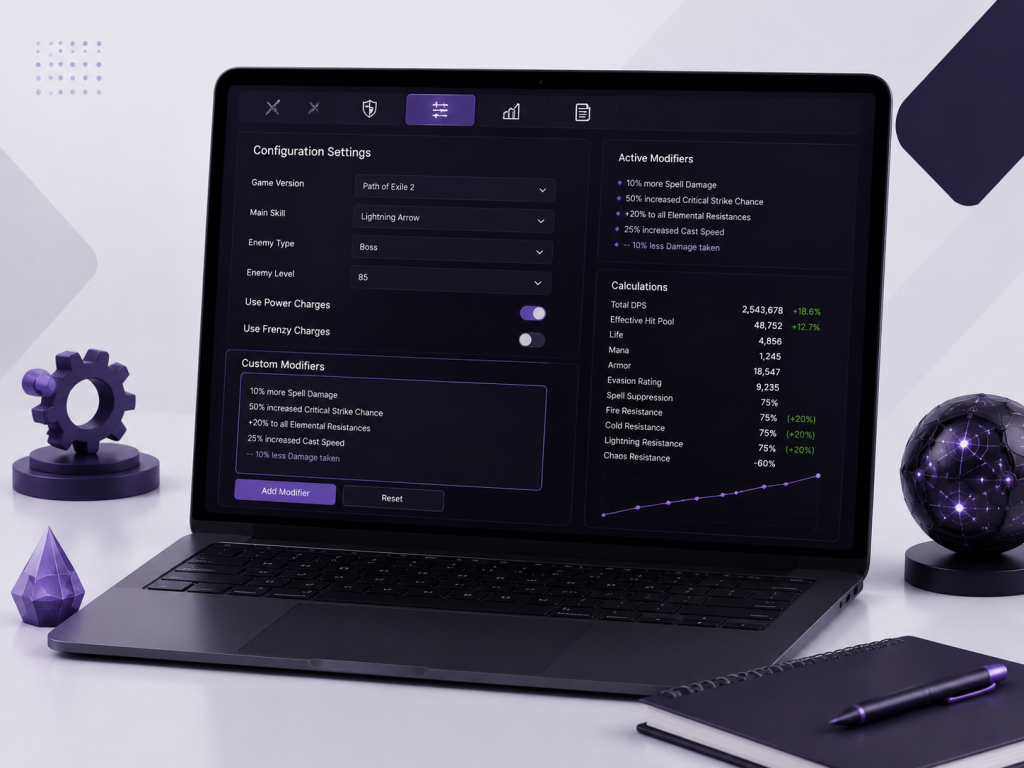
Core Configuration Panels and Combat Settings
Configuration panels allow players to describe how the build performs during combat. Options may include the enemy type, active charges, ailments, buffs, debuffs, and other skill-specific conditions.
Important settings to review include:
- Normal or boss enemy selection
- Power, Frenzy, and Endurance charges
- Active flasks, auras, and temporary buffs
- Enemy exposure, curses, and ailments
- Skill stages and recent combat actions
Only effects that the build can maintain consistently should be enabled. Unrealistic settings may produce higher DPS or defence values than the character can achieve in actual gameplay.
Using Custom Modifiers for Accurate Testing
The Custom Modifiers field allows users to add supported modifier lines that are missing from an item, passive node, or calculation setup. It can also help simulate planned changes without editing several parts of the build.
Custom modifiers should use formatting that Path of Building recognizes. After adding a modifier, check the Calcs tab to confirm that it affects the intended statistic.
These modifiers should be used carefully. Incorrect wording, duplicated effects, or unsupported values can create misleading results.
Damage, DPS Overlay, and Defensive Calculations
Path of Building calculates offensive and defensive performance from the selected skills, equipment, passive nodes, and configuration settings. The Calcs tab provides detailed results that help players identify strengths and weaknesses in a build.
Understanding DPS and Damage Breakdowns
DPS shows the estimated damage a skill can deal per second. The final value may include hit damage, attack or cast speed, critical strikes, ailments, and damage over time.
The damage breakdown can display:
- Physical, fire, cold, lightning, and chaos damage
- Average hit and total DPS
- Critical strike chance and multiplier
- Poison, ignite, bleed, or other damage-over-time effects
- Damage gained from buffs, charges, and support gems
Players should look beyond the total DPS number. Damage uptime, resource costs, skill range, and realistic combat conditions also affect actual performance.
Effective Hit Pool (EHP) and Survivability Metrics
Effective Hit Pool, commonly called EHP, estimates how much incoming damage a character can survive after defensive layers are considered. It provides a broader view than checking life or energy shield alone.
EHP calculations may include armour, evasion, block, spell suppression, resistances, life, energy shield, and damage reduction. Maximum hit values can also show how well the build handles powerful physical, elemental, or chaos attacks.
These results should be reviewed together with recovery, movement, and defensive skill uptime. A balanced build needs enough protection against large hits as well as repeated damage.
Comparing Builds and Optimizing Performance
Path of Building allows players to test different build versions without changing the character. By comparing gear, gems, and passive choices, users can identify upgrades that improve damage, defence, or overall usability.
Optimization should focus on balanced performance rather than increasing a single number.
Comparing Gear, Gems, and Passive Tree Variants
Players can switch between items, support gems, and passive routes to see how each option affects the build. The Calcs tab helps compare changes in DPS, life, resistances, EHP, attack speed, and other important values.
Useful comparisons include:
- One weapon against another
- Different support gem combinations
- Alternative passive tree routes
- Damage-focused gear against defensive gear
- Budget equipment against endgame upgrades
Only one major change should be tested at a time. This makes it easier to understand which option provides the real improvement.
Prioritizing Upgrades and Improving Build Performance
Upgrade priority depends on the build’s weakest area. A character with strong damage but low survivability may benefit more from life, resistances, recovery, or defensive layers than another damage modifier.
Players should first fix basic problems such as missing attributes, uncapped resistances, high mana costs, or weak defences. After that, they can focus on stronger weapons, better gem levels, valuable passive nodes, and crafted modifiers.
The best upgrade is not always the one with the highest DPS increase. Cost, consistency, clear speed, defence, and ease of use should also be considered.
Troubleshooting Common Path of Building Issues
Most Path of Building problems come from outdated software, incomplete build imports, missing game data, or incorrect configuration settings. Checking these areas first can solve many common errors.
Fixing Import Errors, Missing Data, and Build Problems
When a build fails to import, confirm that the full build code or supported sharing link has been copied correctly. Older links may no longer work and may need to be replaced with an updated code.
Common fixes include:
- Update Path of Building Community Edition
- Check that the correct game version is selected
- Copy the complete build code again
- Confirm that items, gems, and passive nodes loaded
- Disable unsupported or outdated modifiers
- Restart the program and repeat the import
If part of the build is missing, compare it with the original guide or character profile and add the required information manually.
Performance Tips for Accurate Calculations
Accurate results depend on realistic skills, equipment, and combat settings. Players should avoid enabling every buff, charge, or temporary effect unless the build can maintain it during normal gameplay.
Keep gem levels, item modifiers, enemy settings, and passive points consistent with the actual character. Review the Configuration and Calcs tabs after major updates because changes to skills or game mechanics may affect previous results.
Testing one change at a time also makes differences in calculations easier to understand.
Frequently Asked Questions
These questions explain the basic PoB workflow, damage calculations, setup requirements, and build importing on macOS.
What Are the Main Stages of Building a Character With PoB?
The main stages are selecting a class and ascendancy, planning the passive tree, adding active and support gems, and equipping suitable items. After creating the setup, configure realistic combat conditions and review the damage and defensive calculations. Players should then compare upgrades, fix weaknesses, and save separate versions for leveling, budget gear, and endgame progression.
How Do I Show Full DPS and Damage Breakdowns in PoB?
Select the main damage skill in the Skills or Calcs tab, then open the detailed calculation view. Make sure all required support gems, equipment, buffs, charges, and enemy settings are configured correctly. PoB will display values such as average hit, attack or cast rate, critical damage, ailments, damage over time, and combined DPS where supported.
Can I Skip Setup Steps and Still Get Accurate Results?
Skipping important setup steps can produce incomplete or misleading results. PoB needs the correct passive tree, gem levels, equipment, modifiers, enemy type, and combat conditions to calculate performance accurately. Default settings may provide a rough estimate, but detailed testing requires a realistic configuration. Always review the Skills, Items, Configuration, and Calcs tabs before relying on the final DPS or EHP values.
How Do I Import Builds and Items on macOS?
The importing process on macOS is similar to that on other platforms. Open the Import/Export Build section, paste the supported build code or sharing link, and select the import option. Individual items can usually be copied from Path of Exile and pasted into the Items tab. If importing fails, update the application and confirm that the macOS build supports the required PoB version.
Conclusion
Path of Building provides an effective way to plan, test, and improve Path of Exile characters without spending in-game resources. It combines passive tree planning, gem configuration, item simulation, damage calculations, and defensive analysis into a single tool.
Accurate results depend on correct build data and realistic configuration settings. By reviewing each section carefully and comparing changes one at a time, players can create stronger, more balanced, and easier-to-follow builds.
Latest Post:
Related Posts

Writen By
Laverne
Meet Laverne Silveira, the creative mind shaping the stories of Path of Building. With a knack for crafting immersive narratives, I transport players to captivating worlds where adventures unfold. Join me in exploring the boundless possibilities of gaming storytelling!


Leave A Reply